

Moving companies rely on Square for fast, reliable payment collection — but square up receipt lookup becomes essential when reconciling deposits against job estimates or responding to customer payment disputes. Square processes transactions for over 4 million active sellers globally, yet locating a specific receipt requires knowing exactly which filters and navigation paths to use. The ability to retrieve any payment record instantly directly shapes customer experience in moving services — customers expect proof of payment on demand. This guide covers every method available in 2026 to perform a complete Square transaction history search, including moving-company-specific workflows that no generic Square tutorial addresses.

Key Takeaways
| Point | Details |
|---|---|
| Search history depth | Square Dashboard stores up to 24 months of full transaction history, searchable by date, name, email, or exact dollar amount |
| Receipt resend speed | Any receipt can be resent to a customer's email directly from the Transaction Detail panel in under 30 seconds |
| Bulk export for accounting | Square exports complete transaction histories to CSV — direct import into QuickBooks, Xero, and FreshBooks |
| Customer self-service | Customers retrieve receipts at receipts.squareup.com using only their card's last 4 digits and email — no account required |
| Moving company workflow | Cross-reference Square receipts with types of moving estimates and payment workflows to build a receipt-matched job file system |
What Is Square Up and How Its Receipt System Works
Square (originally marketed as "Square Up") is a point-of-sale and payment processing platform used by over 4 million businesses across the U.S. Every transaction processed through Square — via card reader, online invoice, or virtual terminal — generates a digital receipt automatically stored in Square's ecosystem and retrievable within seconds.
The receipt system operates across four distinct access layers, each suited to a specific retrieval scenario:
| Access Method | Who Uses It | History Depth | Primary Use Case |
|---|---|---|---|
| Square Dashboard (web) | Business owner / authorized team | 24 months | Full search, export, resend receipts |
| Square POS App | Business owner / team | 60 days | Quick same-day lookup and resend |
| receipts.squareup.com | Customer | 24 months | Customer self-service, no account required |
| Square API | Developers | Unlimited* | Programmatic transaction data access |
Square assigns a unique transaction ID to every payment — a 16-character alphanumeric string that serves as the definitive reference for any receipt. For moving companies managing dozens of job payments per week, the square POS receipt history in the Dashboard is the primary tool for square payment confirmation lookup and financial reconciliation.
Step 1: Log In to Your Square Dashboard
The Square Dashboard at squareup.com is the most comprehensive interface for square up receipt lookup. Access requires the email and password for the Square account owner or an authorized team member with transaction permissions enabled under Team > Permissions.
Navigate to squareup.com and click "Sign In" in the top-right corner. Two-factor authentication (2FA) is active by default on accounts created after January 2024 — have a verification code ready from your authenticator app or SMS. For multi-location moving operations, verify the correct location is selected via the dropdown in the top-left corner before running any transaction search, as each location maintains a completely separate transaction log.
Pro Tip: If your moving company operates from multiple Square locations — main office and warehouse depot, for example — mismatched location selection is the single most common reason a receipt appears "missing" when it actually exists under a different location within the same account. Always confirm the active location before searching.
Step 2: Navigate to Transactions and Filter by Date
Once logged in, the direct path to square dashboard transaction history is: Reporting > Transactions in the left navigation panel. This view defaults to today's transactions and updates in real time as new payments process.
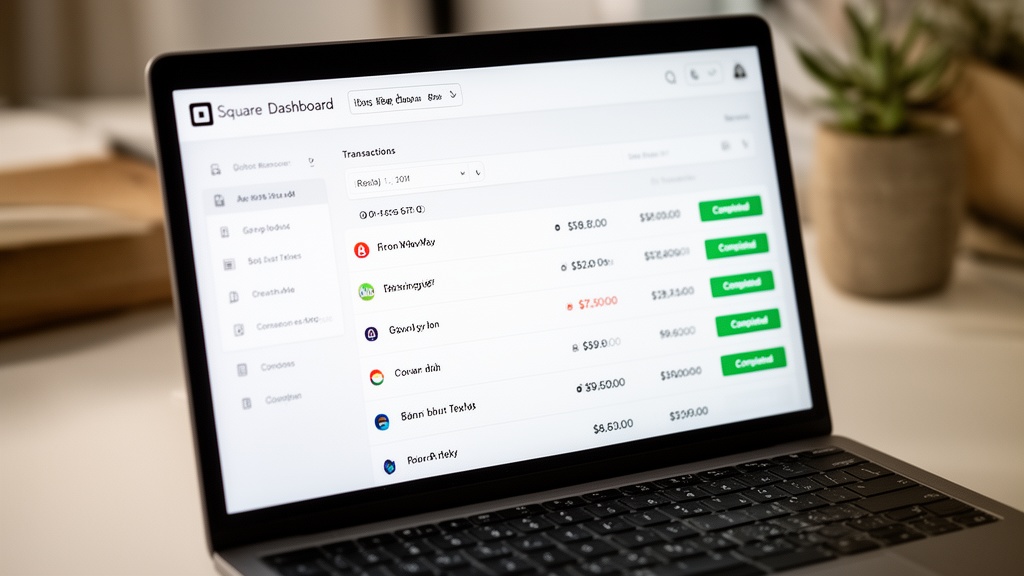
The date range filter is the most powerful tool for square receipt by date range searches. Click the date selector at the top of the Transactions page and choose from:
- Today / Yesterday — for same-day or next-day payment verification
- Last 7 / 30 days — for weekly reconciliation or monthly period close
- Custom range — enter exact start and end dates for job-specific searches (the primary method for moving companies)
- This month / Last month — for period-based accounting exports
For a $3,200 final balance payment processed on a specific job date, entering that exact date as a custom range narrows the full transaction list to a manageable subset in seconds. Results display in reverse chronological order by default.
Virtual Estimate can help: Virtual Estimate's integrated estimate and payment tracking for moving companies links every job estimate directly to its payment record — eliminating the need to manually cross-reference Square receipts. Learn more →
Step 3: Search by Customer Name, Email, or Amount
The square transaction history search bar at the top of the Transactions view supports four parameters: customer name, customer email, card last 4 digits, and exact dollar amount. Results narrow in real time as characters are entered.
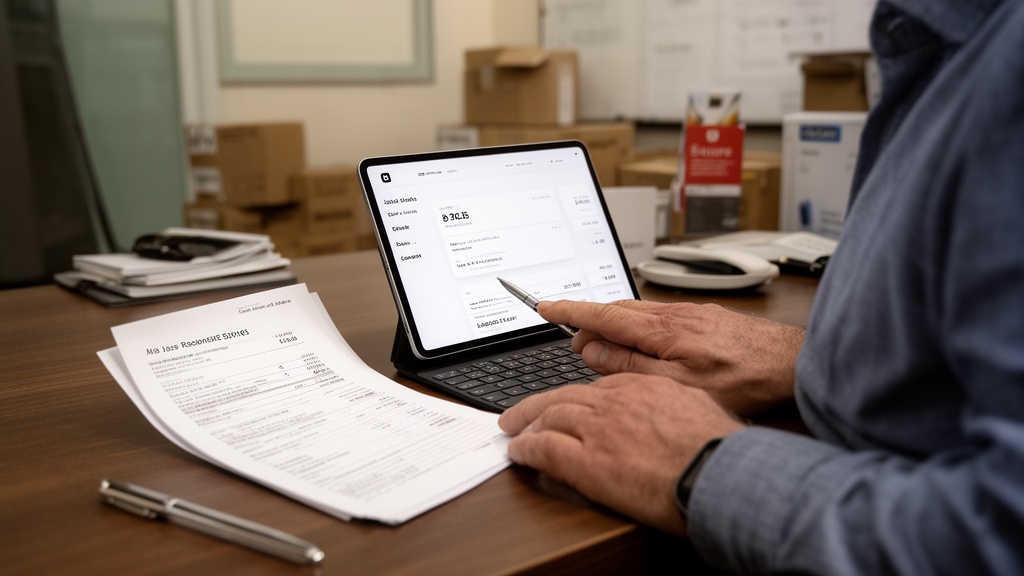
For a square receipt email lookup, type the customer's email address directly into the search bar. Square matches against the email on file from the customer's Square profile or the address entered manually at payment time. For moving customers who provided an email during the booking process, this method returns results in under 2 seconds.
Searching by exact dollar amount is the most reliable fallback when customer contact details are unavailable. Enter the total including cents (e.g., "3247.50") to isolate the specific transaction. This is the standard method for find old square receipt requests tied to specific invoice totals from past jobs.
To retrieve the actual transaction ID — the core of how to find square receipt number — click any result row to open the Transaction Detail panel on the right side. The transaction ID appears at the top in gray text and can be copied directly for use in customer communications or accounting records.
Step 4: Resend or Download a Square Receipt
From the Transaction Detail panel, square resend receipt takes two clicks: click the envelope icon labeled "Send Receipt," enter or confirm the customer's email, then click Send. Per Square's official help documentation, receipts arrive in the customer's inbox within 60 seconds under normal operating conditions.
Square payments receipt download follows this path: click "View Receipt" to open the digital receipt in a new browser tab, then use browser print-to-PDF (Ctrl+P on Windows or Cmd+P on Mac, then Save as PDF) to create a local file. As of 2026, Square does not offer a native one-click PDF download button from the transaction detail view — the print-to-PDF method is the standard documented workflow for individual receipts.
For bulk how to download square transaction history, navigate to Reporting > Transactions and click the Export button in the top-right corner. The CSV export includes transaction ID, date, customer name, payment method, gross amount, Square processing fees, net payout, and any notes attached at the time of payment — everything required for square export receipts for accounting workflows.
Pro Tip: When exporting Square data for monthly accounting, add a 2-day buffer on both ends of the date range. Square's ACH settlement timing can cause a transaction processed on the last day of a month to settle into the following month's payout cycle — a timing mismatch that creates balance sheet discrepancies during period-end close.
How Customers Can Look Up Their Own Square Receipts
Customers do not need a Square account to retrieve their own receipts. The square receipt for customer self-service portal at receipts.squareup.com allows any cardholder to find a receipt using their email address, the last 4 digits of the card charged, and the approximate transaction date.
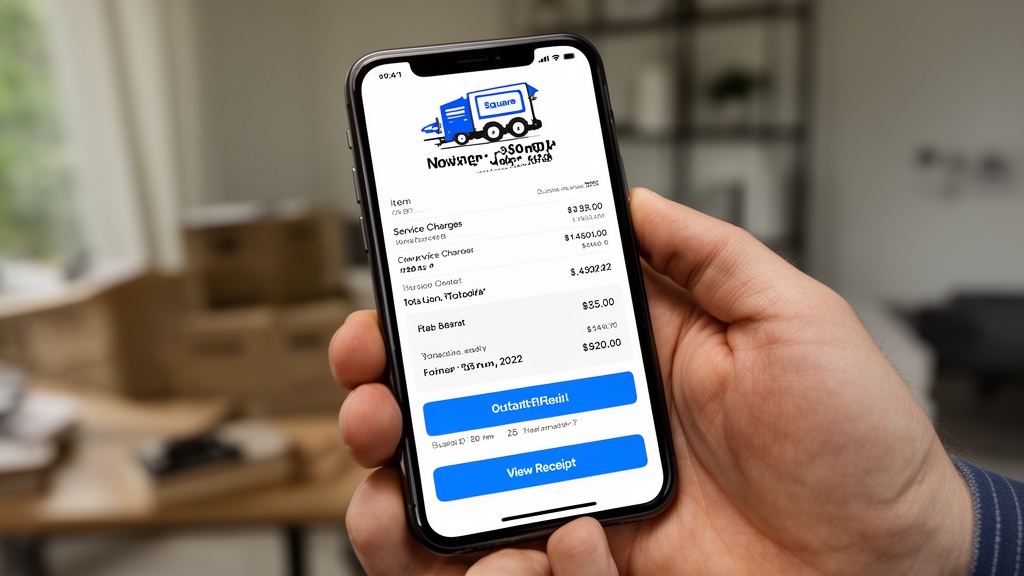
Square emails a one-time verification code to the provided address, then displays all matching transactions from that card. Customers can view, download, or forward any receipt — covering transactions up to 24 months old — without contacting the business or creating an account. This is the complete square up transaction search workflow for the customer side.
For moving companies, include the receipts.squareup.com URL proactively in all post-move follow-up emails. Adding this single link to standard post-service communication reduces receipt-related support inquiries measurably and directly reinforces positive customer experience in moving services at zero operational cost.
Troubleshooting: Receipt Not Found in Square
When a square up receipt lookup returns no results, five root causes account for over 90% of cases:
| Cause | How to Diagnose | Resolution |
|---|---|---|
| Wrong location selected | Dashboard displays a different location's transaction data | Switch via the top-left location dropdown |
| Cash transaction | Cash payments generate no Square digital receipt | Check paper records or manual receipt log |
| Refunded or voided transaction | Filtered out when status is set to "Completed" only | Change status filter to "All" |
| Offline mode sync delay | Offline transactions sync within 24 hours of reconnection | Check the Activity feed rather than Transactions |
| Settlement date mismatch | Transaction and settlement dates can differ by 1-2 days | Expand date range by ±2 days on both ends |
For transactions genuinely absent after checking all five causes, contact Square Support with the approximate date, dollar amount, and card type. Square's support team can access server-side transaction logs not visible in the standard Dashboard — this escalation path resolves the remaining edge cases that standard troubleshooting cannot reach.
Square Receipt Lookup for Moving Company Payments
Moving companies using Square face a specific reconciliation challenge: matching square POS receipt history against written estimates, deposits, and final payment balances. A standard residential move generates 2-3 separate Square transactions — booking deposit, day-of balance, and any add-on charges — each requiring individual tracking within the job file.
The recommended workflow, grounded in moving company pricing strategies that use Square for payment collection:
- At booking: Process deposits via Square Invoice — invoices include a reference note field where the job number or estimate ID can be entered for permanent linkage
- At pickup: Process the balance via Square POS, entering the job number in the "Note" field before charging the customer's card
- Post-move: Export the month's Square CSV, sort by the Note column, and group all transactions by job number for reconciliation
The Note field in Square transactions is fully searchable in the Dashboard, making it the most reliable connector between moving company payment receipt records and specific job files. Understanding how movers price their services and collect payment is the foundation for designing a payment collection system that stays auditable at scale.
For companies running Square on tablets, ensure you find your Square tablet's IMEI number for device registration to properly link each device to the correct Square location — registration errors cause transactions to appear under the wrong location's history, which is a frequent source of phantom "missing" receipts.
The IRS requires businesses to retain payment records for a minimum of 3 years from the return filing date. Since Square's Dashboard covers only 24 months, moving companies must export and archive transaction CSVs annually. Companies processing more than 50 jobs per month gain the most from connecting Square to a dedicated VirtualEstimate CRM platform that automatically links payment records to job estimates — replacing manual annual exports with continuously reconciled, job-level financial data.
Pro Tip: Create a dedicated cloud folder labeled "Square Exports — [Year]" and save the full-year CSV export on December 31 each year. Include the export date in the filename (e.g., "square-transactions-2026-20261231.csv") so the archive remains clearly auditable for IRS record retention purposes.
Related Articles
- How to Find Samsung Galaxy Tab IMEI Number (2026) — Learn how to locate the IMEI on your Square-connected tablet for device registration and location linking.
- How Much Does It Cost for Movers to Move? 2026 Guide — Understand moving company pricing structures and how deposits and final payments are typically collected.
- Pricing Strategies for Moving Companies: Maximizing Profitability — Proven frameworks for structuring moving company pricing, deposit collection, and payment documentation workflows.
- Management Software for Business: How to Choose in 2026 — A decision framework for selecting business management tools with integrated payment and receipt tracking.
- Agency AI: How to Use AI Agents for Your Business 2026 — Explore how AI automation can streamline payment reconciliation and customer communication at scale.
Recommended Resources
Ready to see it in action?
Book a free 20-minute demo and explore how Virtual Estimate can help your business.