

The Samsung Galaxy Tab IMEI (International Mobile Equipment Identity) number is a 15-digit unique identifier required for carrier registration, insurance claims, theft reporting, and unlock requests. With over 200 million Android tablets active globally as of 2026, misplacing this number creates real operational problems — especially when dealing with carriers, insurers, or law enforcement. Whether the screen is cracked, the original box is gone, or the device will not power on, multiple retrieval methods exist for every scenario. This guide documents all 5 confirmed methods for finding a Samsung Galaxy Tab IMEI, including edge cases that most tutorials ignore.
Key Takeaways
| Point | Details |
|---|---|
| IMEI is a 15-digit network identifier | Present only on LTE/5G Samsung Galaxy Tab models; Wi-Fi-only models have serial numbers but no IMEI |
| 5 confirmed retrieval methods exist | Dialer code *#06#, Settings menu, physical device label, Google Account, and Samsung Find My Mobile cover every scenario |
| Remote lookup requires prior account setup | Google Account and Samsung Find My Mobile allow IMEI retrieval without physical device access — but only if accounts were registered before damage or loss |
| IMEI and serial number are distinct | The IMEI (15 digits) is carrier-facing; the serial number (alphanumeric, 11 chars) is Samsung's internal tracker — both appear on the retail box |
| IMEI blocking prevents all network access | A blocked IMEI bars connection on any participating carrier globally; see GSMA IMEI standards for the international framework |
What Is an IMEI Number and Why It Matters
The IMEI number is a globally unique 15-digit code assigned to every mobile device capable of connecting to a cellular network. Standardized by the GSMA, it functions as the digital fingerprint of a Samsung Galaxy Tab — no two devices share the same number, and the code persists for the lifetime of the hardware.
Understanding the specific use cases for this number prevents delays when problems arise:
- Carrier activation and A2P registration: Networks authenticate devices via IMEI; samsung galaxy IMEI a2p registration for business messaging compliance also requires this number
- Theft reporting: Law enforcement and carriers use IMEI to flag and block stolen devices on the GSMA Device Check database
- Insurance claims: Every major device insurer requires IMEI verification before processing a claim
- Carrier unlock requests: Unlocking a carrier-locked Samsung Tab requires submitting the IMEI to the originating carrier
- Secondhand device verification: Buyers use IMEI checker Samsung tools to confirm a device is not blacklisted before purchase
The samsung tablet serial number vs IMEI distinction is critical. The serial number is Samsung's alphanumeric manufacturing code used for warranty tracking and repair records. The IMEI is a network-facing identifier used by cellular infrastructure globally. Wi-Fi-only Galaxy Tab models carry a serial number but no IMEI — the IMEI exclusively applies to LTE and 5G-capable variants.
| Identifier | Format | Primary Purpose | Used By |
|---|---|---|---|
| IMEI | 15 digits | Cellular network identity | Carriers, law enforcement, insurers |
| Serial Number | Alphanumeric (11 chars) | Manufacturer tracking | Samsung support, warranty claims |
| MEID | 14 digits | CDMA network identity | Legacy US CDMA carriers |
| EID | 32 digits | eSIM identity | eSIM-enabled Galaxy Tab models |
Step 1: Find IMEI via Dialer Code (*#06#)
The fastest method to retrieve a Samsung Galaxy Tab IMEI number requires no menus, no accounts, and takes under 10 seconds. Open the default Phone or Dialer app and type *#06#. The IMEI — or both IMEIs on dual-SIM models — appears immediately in a system dialog without pressing dial.
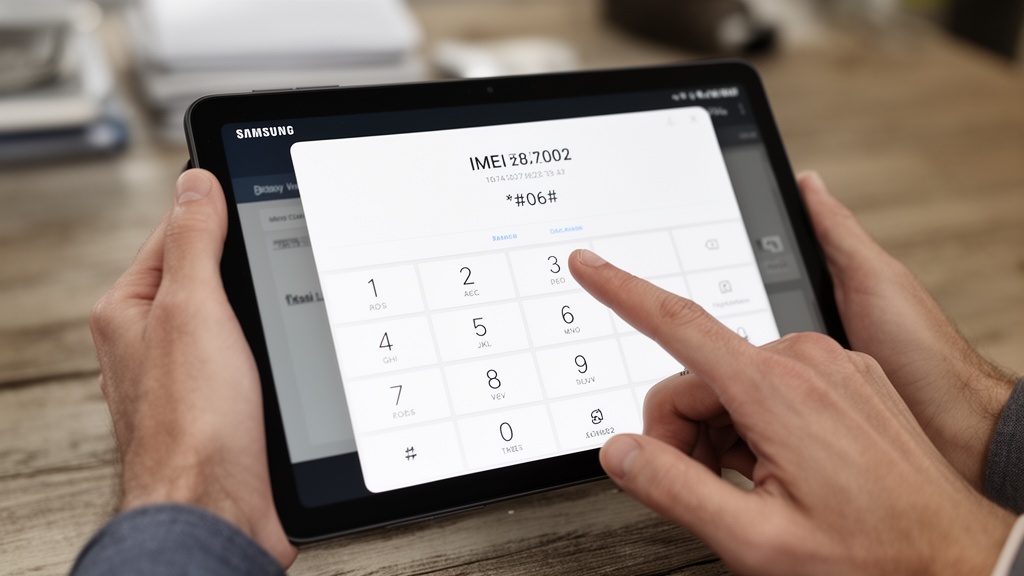
This method works on virtually every Samsung Galaxy Tab model released since 2013, including the Tab S series, Tab A series, Tab E, and Tab Active lines. The dialog typically displays:
- IMEI 1 — primary SIM slot identifier
- IMEI 2 — secondary SIM slot on dual-SIM models
- Serial number — on select firmware versions
Pro Tip: Screenshot the IMEI dialog immediately after retrieval and save it to cloud storage via Google Photos or Samsung Gallery backup. This 15-second step creates a recoverable record that survives device damage, loss, or factory reset — eliminating hours of recovery effort later.
Wi-Fi-only Samsung Galaxy Tab models do not include a Phone app. On these devices, *#06# produces no result. Use the Settings path or physical device methods described in the sections below.
Step 2: Check IMEI in Samsung Settings Menu
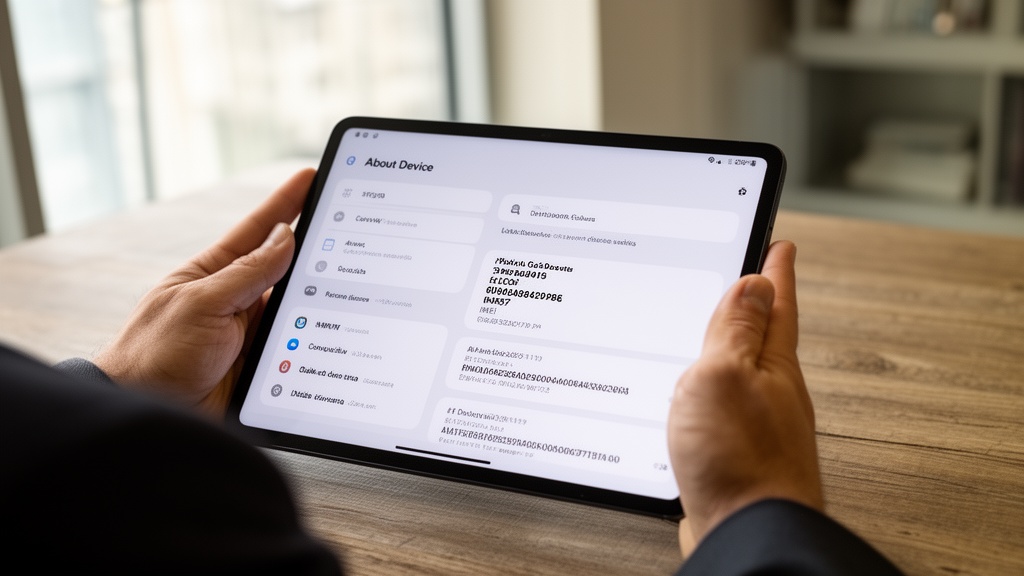
For a permanent on-device record, the Settings menu is the most reliable access point. The path on Samsung One UI 6 (2026) is Settings → About Tablet → Status Information → IMEI Information. On devices running Android 11 or earlier, the path is Settings → About Device → Status → IMEI Information.
The step-by-step process on current firmware:
- Open Settings (gear icon from the notification shade or app drawer)
- Scroll to About Tablet at the bottom of the menu
- Tap Status Information
- Tap IMEI Information
Both IMEI 1 and IMEI 2 display here on dual-SIM capable models. This screen also surfaces the Android security patch level, software version, and model number — information frequently required alongside the IMEI during carrier support calls.
Pro Tip: On Samsung One UI 5 and newer, use the Settings search bar (magnifying glass at the top of Settings) and type "IMEI" directly. This bypasses multi-level navigation entirely and surfaces the IMEI Information screen in a single tap — the fastest Settings-based retrieval method on current firmware.
Virtual Estimate can help: Managing IMEI records, device compliance documentation, and operational workflows across a tablet fleet is significantly faster with the right platform. The VirtualEstimate AI platform centralizes business operations so device management does not become a bottleneck. Learn more →
Step 3: Locate IMEI on the Physical Device or Box
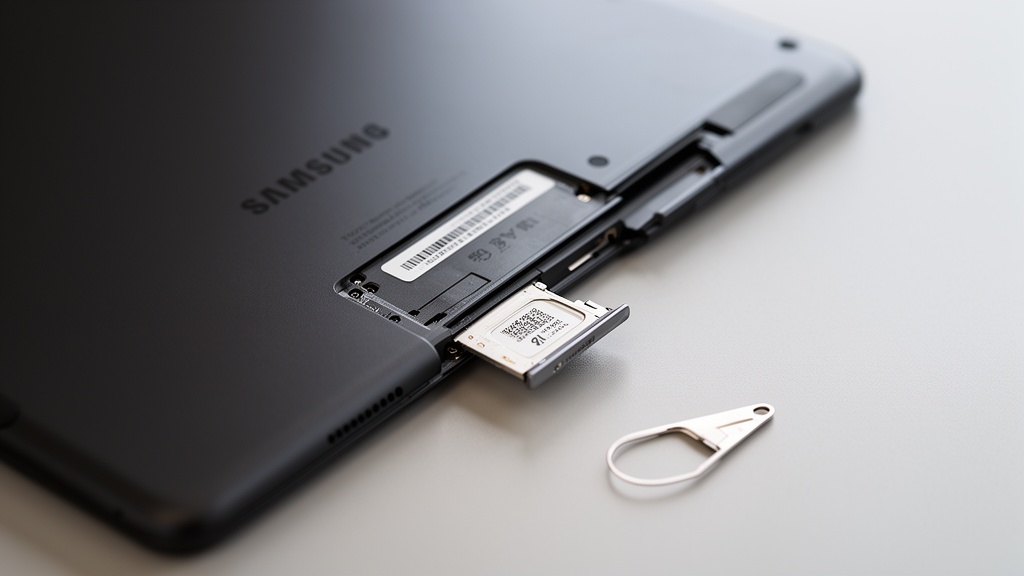
When software-based access is unavailable — screen broken, battery dead, or firmware corrupted — the tablet IMEI number location on the hardware itself becomes the primary retrieval path. Samsung uses three physical locations depending on model year and design:
- SIM card tray cavity: On LTE/5G Galaxy Tab models, the IMEI is printed on a small label inside the SIM tray slot. Eject the tray with a SIM ejector tool and inspect the cavity using a flashlight. This is the fastest physical method on current Tab S and Tab A models.
- Back panel label: Pre-2020 Galaxy Tab models, including early Tab E variants, printed the IMEI directly on the rear housing near the bottom edge in fine text.
- Original retail box sticker: The product box includes a label with two barcodes — one for the serial number and one for the IMEI — clearly marked. Both appear alongside the model number and color.
The samsung tab S IMEI location on current flagship models (Tab S9, S9+, S9 Ultra, Tab S10 series) is exclusively the SIM tray cavity on cellular variants. The box sticker method remains the most accessible fallback when the device itself is damaged beyond physical inspection.
For IT administrators tracking how to check IMEI on tablet across a device fleet, the retail box label is the fastest bulk option at the point of unboxing. Logging IMEI numbers in an asset management system at deployment eliminates all downstream retrieval challenges.
Step 4: Find IMEI Through Google Account
When a Samsung Galaxy Tab is lost, stolen, or has a non-functional screen, the Google Account previously linked to the device enables remote IMEI retrieval. This method requires prior sign-in to a Google Account on the tablet and at least one internet sync event.
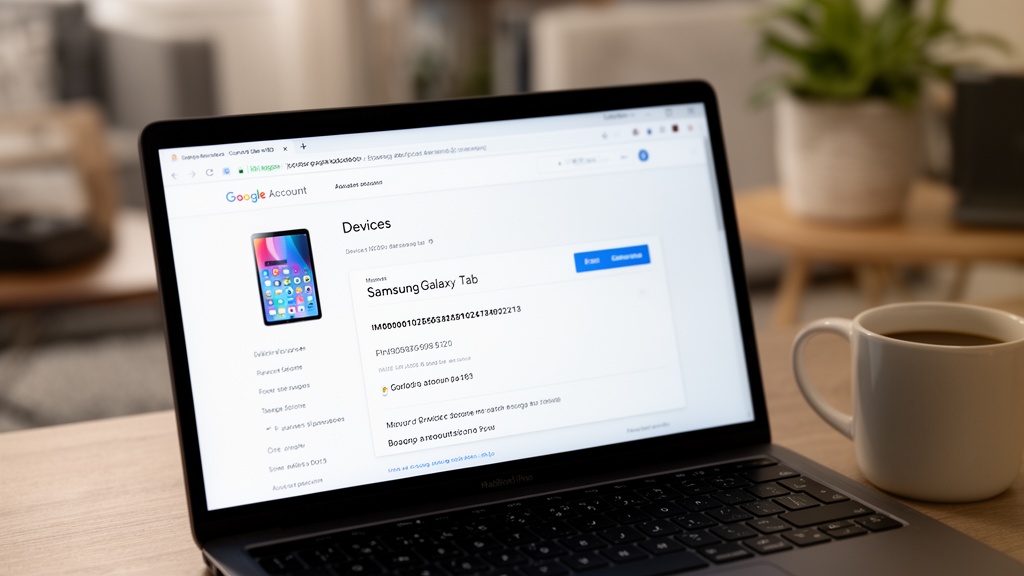
Access this method from any browser at myaccount.google.com:
- Sign in with the Google Account linked to the Galaxy Tab
- Click Security in the left navigation panel
- Scroll to Your devices and click Manage all devices
- Select the Samsung Galaxy Tab from the device list
- Expand the device details panel to view IMEI
Google displays the IMEI on Android 11 and later devices with Google Play Services active. This is one of the only fully remote methods — making it the primary solution for how to find IMEI on broken Samsung tablet scenarios where all physical and software access is blocked.
Understanding how AI-powered tools are streamlining device and record management for businesses has become increasingly relevant as organizations manage fleets of tablets requiring centralized IMEI tracking, compliance documentation, and lifecycle records.
If the IMEI does not appear in Google Account — common on Android 9 and earlier or tablets with restricted Google integration — Samsung Find My Mobile provides an alternative cloud-based retrieval path covered in the next section.
Step 5: Use Samsung Find My Mobile to Retrieve IMEI
Samsung's proprietary Find My Mobile service provides device management capabilities that complement Google's offering, including IMEI retrieval for Samsung Account holders. This method requires a Samsung Account linked to the device and at least one prior internet connection on the tablet.
Steps to retrieve IMEI via Samsung Find My Mobile:
- Visit findmymobile.samsung.com from any browser
- Sign in with the Samsung Account registered on the Galaxy Tab
- Select the device from the registered devices list
- Click Device Info or About
- The IMEI appears alongside the model number and last known location
Samsung Find My Mobile also enables remote screen lock, data backup, and location tracking — functions that become essential when galaxy tab IMEI blocked status needs verification or when the device is being reported stolen. The FCC provides guidance on using IMEI to report stolen wireless devices to US carriers.
Pro Tip: Register every Samsung device with a Samsung Account before deployment or first use. The 3-minute setup process unlocks Find My Mobile's full capability set — including remote IMEI retrieval, theft protection, and remote unlock — features that are completely unavailable without prior account registration.
Organizations using business operations solutions that integrate device and asset management can use Samsung Find My Mobile as a complementary hardware identification layer within broader operational workflows.
Common Issues When Looking Up Your Samsung Tab IMEI
Several scenarios complicate standard IMEI retrieval. Each has a specific resolution path that avoids wasted time with carrier support lines.
| Problem | Root Cause | Resolution |
|---|---|---|
| Screen completely unresponsive | Hardware damage or liquid ingress | Check SIM tray label, original box, or Google/Samsung account remotely |
| Device will not power on | Dead battery or internal hardware failure | Physical label (SIM tray, back panel, box) or account-based remote lookup |
| No Phone app available | Wi-Fi-only Galaxy Tab model | Use Settings → About Tablet path; *#06# is not applicable |
| Two IMEI numbers displayed | Dual-SIM capable model | Use IMEI 1 for primary carrier operations; both are valid registered identifiers |
| IMEI absent from Google Account | Android version below 11 or limited Play Services | Use Samsung Find My Mobile as the account-based fallback |
| Box discarded and device damaged | No physical backup available | Contact the activating carrier — carriers log IMEI at activation and can retrieve it with account verification |
For advanced users with ADB (Android Debug Bridge) enabled via Developer Options, a broken-screen device that still powers on can yield its IMEI via USB connection. Connect the tablet to a PC and run adb shell service call iphonesubinfo 1 in a terminal. This returns the IMEI string without requiring screen interaction.
The samsung galaxy IMEI a2p registration workflow — registering a business tablet for compliant application-to-person messaging — requires the exact IMEI as recorded by the carrier at activation. Verify the IMEI retrieved matches carrier records before submitting registration forms to avoid compliance processing delays.
Businesses that use a samsung IMEI lookup tool or check samsung tab IMEI online services for fleet verification should cross-reference results against the carrier portal, as third-party lookup databases occasionally have propagation delays of 24-72 hours after new registrations.
How to Use Your IMEI to Unlock or Report a Lost Device
Once the Samsung Galaxy Tab IMEI is confirmed, two primary actions follow: carrier unlock requests and theft reporting. Both processes are IMEI-driven and follow defined carrier procedures.
Carrier Unlock Process:
Most Samsung Galaxy Tabs sold through US carriers (AT&T, T-Mobile, Verizon) ship with a carrier lock. Submitting an unlock request requires:
- Confirming the account has no outstanding balance
- Meeting the minimum active period — typically 60 to 90 days depending on the carrier
- Submitting the IMEI via the carrier's online unlock portal or customer service channel
The IMEI checker Samsung process at carrier portals verifies lock status in real time. Third-party samsung IMEI lookup tool platforms such as IMEI.info confirm whether a device is carrier-locked or blacklisted — a critical check for secondhand Galaxy Tab buyers before purchase.
Theft Reporting and IMEI Blocking:
A galaxy tab IMEI blocked status means the device has been flagged on carrier databases and cannot register on any participating network regardless of SIM card. To initiate IMEI blocking after theft:
- File a police report and obtain the report number
- Contact the carrier with the IMEI and police report number
- The carrier submits the IMEI to the GSMA Device Check database, propagating the blocked status to participating carriers internationally
Check samsung tab IMEI online services allow verification of blacklist status before buying secondhand Samsung tablets — a step that prevents purchasing devices that will not function on any network. Businesses managing multiple tablets should maintain a centralized IMEI registry and review the VirtualEstimate AI platform alongside business operations solutions that support structured device record management at scale.
Related Articles
- Agency AI: How to Use AI Agents for Your Business 2026 — Learn how AI agents are transforming device management, record automation, and business operations workflows.
- Management Software for Business: How to Choose in 2026 — A structured framework for evaluating business management software platforms, including asset and device tracking capabilities.
- How Much Does It Cost for Movers to Move? 2026 Guide — A complete breakdown of moving costs, pricing structures, and what factors drive estimates in 2026.
- Buy Moving Leads in 2026: Best Providers & Pricing — An analysis of the top moving lead providers, pricing models, and ROI benchmarks for service businesses.
Recommended Resources
Ready to see it in action?
Book a free 20-minute demo and explore how Virtual Estimate can help your business.